🚀 *Gen AI Engineer (Production Focused)*
 To create a standalone Windows GUI (Graphical User Interface) application for this FFmpeg command, the easiest and fastest approach is using Python with its built-in tkinter library.
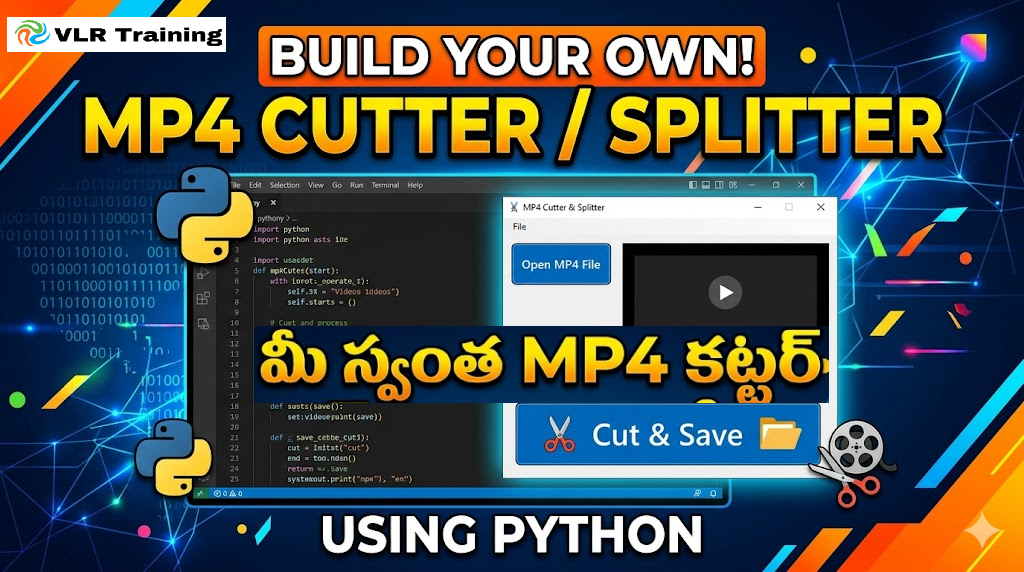
You can write a simple script that gives you a visual window to select your file, type in the split time, and click a button. Then, you can package it into a .exe file that runs like any normal Windows app.
🛠️ Step 1: Prerequisites
- FFmpeg: You already have this from the previous steps.
- Python: Download and install Python from the Microsoft Store or python.org. (Make sure to check the box “Add Python to PATH” during installation).
💻 Step 2: The Application Code
Create a new folder on your computer. Inside it, create a file named VideoSplitter.py, open it in Notepad (or any code editor), and paste the following code:
Python
import tkinter as tk
from tkinter import filedialog, messagebox
import subprocess
import os

def select_file():
    filename = filedialog.askopenfilename(
        title="Select MP4 File",
        filetypes=[("Video files", "*.mp4;*.mkv;*.avi")]
    )
    file_entry.delete(0, tk.END)
    file_entry.insert(0, filename)

def split_video():
    input_file = file_entry.get()
    split_time = time_entry.get() # Format: HH:MM:SS

    if not input_file or not split_time:
        messagebox.showwarning("Missing Info", "Please select a file and enter a split time.")
        return

    # Create output filenames based on the original file's location
    dir_name = os.path.dirname(input_file)
    base_name = os.path.splitext(os.path.basename(input_file))[0]
    part1 = f'"{os.path.join(dir_name, base_name + "_Part1.mp4")}"'
    part2 = f'"{os.path.join(dir_name, base_name + "_Part2.mp4")}"'

    # Wrap input file in quotes to handle spaces
    input_file_quoted = f'"{input_file}"'

    # Build the FFmpeg commands
    cmd1 = f'ffmpeg -y -i {input_file_quoted} -t {split_time} -c copy {part1}'
    cmd2 = f'ffmpeg -y -ss {split_time} -i {input_file_quoted} -c copy {part2}'

    try:
        # Update UI state
        status_label.config(text="Processing...", fg="blue")
        root.update()

        # Run commands invisibly in the background
        subprocess.run(cmd1, shell=True, check=True, stdout=subprocess.DEVNULL, stderr=subprocess.DEVNULL)
        subprocess.run(cmd2, shell=True, check=True, stdout=subprocess.DEVNULL, stderr=subprocess.DEVNULL)

        status_label.config(text="Done!", fg="green")
        messagebox.showinfo("Success", f"Video split perfectly!\nSaved in: {dir_name}")
    except subprocess.CalledProcessError:
        status_label.config(text="Error occurred", fg="red")
        messagebox.showerror("Error", "Failed to split video. Ensure FFmpeg is installed and time format is HH:MM:SS.")

# --- UI Setup ---
root = tk.Tk()
root.title("Zero-Loss MP4 Splitter")
root.geometry("450x200")
root.eval('tk::PlaceWindow . center')

# File Selection
tk.Label(root, text="Select Video:").grid(row=0, column=0, padx=10, pady=15, sticky="w")
file_entry = tk.Entry(root, width=40)
file_entry.grid(row=0, column=1, padx=10, pady=15)
tk.Button(root, text="Browse", command=select_file).grid(row=0, column=2, padx=10)

# Time Selection
tk.Label(root, text="Split Time (HH:MM:SS):").grid(row=1, column=0, padx=10, pady=10, sticky="w")
time_entry = tk.Entry(root, width=15)
time_entry.insert(0, "00:15:30") # Default placeholder
time_entry.grid(row=1, column=1, sticky="w", padx=10)

# Execute Button
tk.Button(root, text="✂️ Split Video", command=split_video, bg="#4CAF50", fg="white", font=("Arial", 10, "bold")).grid(row=2, column=1, pady=20)

# Status
status_label = tk.Label(root, text="")
status_label.grid(row=3, column=1)

root.mainloop()
📦 Step 3: Convert it into a Windows .exe App
Right now, it is just a Python script. To turn it into a standalone Windows application that you can pin to your taskbar or share with friends, we will use a tool called PyInstaller.
- Open your Command Prompt (CMD) or PowerShell.
- Install PyInstaller by running:DOS
pip install pyinstaller - Navigate to the folder where you saved
VideoSplitter.py(e.g.,cd C:\Users\YourName\Desktop\VideoApp). - Run this exact command to compile the app:
- DOS
pyinstaller --onefile --windowed VideoSplitter.py
python -m PyInstaller --onefile --windowed VideoSplitter.py--onefilepackages everything into a single.exefile.--windowedhides the black command prompt console so only your GUI shows up.
Once it finishes, open the newly created dist folder. Inside, you will find VideoSplitter.exe. You can drag this file to your desktop, and double-click it to run your very own custom video splitting application.
FOR N PARTS
To create a desktop graphical user interface (GUI) for Windows, you can use Python’s built-in Tkinter library. We will use the subprocess module to execute the FFmpeg commands in the background without opening command prompt windows.
Prerequisites
- Python: Ensure Python is installed on your Windows machine.
- FFmpeg: FFmpeg must be installed and added to your system’s PATH.
The Python Application Code
Save the following code as a Python file (e.g., VideoSplitter.py). It includes threading so the app doesn’t freeze while processing, and it automatically saves the parts in the same folder as the original video.
Python
import tkinter as tk
from tkinter import filedialog, messagebox
import subprocess
import math
import threading
import os
import platform

def select_file():
    filepath = filedialog.askopenfilename(
        title="Select Video File",
        filetypes=[("MP4 files", "*.mp4"), ("All files", "*.*")]
    )
    if filepath:
        file_var.set(filepath)

def split_video():
    input_file = file_var.get()

    if not input_file or not os.path.exists(input_file):
        messagebox.showerror("Error", "Please select a valid video file.")
        return

    try:
        parts = int(parts_var.get())
        if parts < 2:
            raise ValueError
    except ValueError:
        messagebox.showerror("Error", "Please enter a valid number of parts (2 or more).")
        return

    # Disable button to prevent multiple clicks while processing
    split_btn.config(state=tk.DISABLED)
    status_var.set("Processing... Please wait.")

    # Run the FFmpeg process in a separate thread so the UI doesn't freeze
    threading.Thread(target=run_ffmpeg, args=(input_file, parts), daemon=True).start()

def run_ffmpeg(input_file, parts):
    # Hide CMD window on Windows
    creation_flags = 0
    if platform.system() == "Windows":
        creation_flags = subprocess.CREATE_NO_WINDOW

    try:
        # 1. Get the total duration of the video
        cmd_probe = [
            "ffprobe", "-v", "error", "-show_entries", "format=duration",
            "-of", "default=noprint_wrappers=1:nokey=1", input_file
        ]
        result = subprocess.run(cmd_probe, stdout=subprocess.PIPE, stderr=subprocess.PIPE, text=True, creationflags=creation_flags)

        if result.returncode != 0:
            raise Exception("Failed to read video duration. Make sure FFmpeg is installed.")

        duration = float(result.stdout.strip())

        # 2. Calculate time per segment
        segment_time = math.ceil(duration / parts)

        # 3. Setup output file paths
        output_dir = os.path.dirname(input_file)
        base_name = os.path.splitext(os.path.basename(input_file))[0]
        output_pattern = os.path.join(output_dir, f"{base_name}_part_%03d.mp4")

        # 4. Execute the split command
        cmd_split = [
            "ffmpeg", "-y", "-i", input_file, "-c", "copy", "-map", "0",
            "-segment_time", str(segment_time), "-f", "segment",
            "-reset_timestamps", "1", output_pattern
        ]
        split_process = subprocess.run(cmd_split, stdout=subprocess.PIPE, stderr=subprocess.PIPE, creationflags=creation_flags)

        if split_process.returncode == 0:
            status_var.set("Ready")
            messagebox.showinfo("Success", f"Video successfully split into {parts} parts!")
        else:
            raise Exception("FFmpeg encountered an error during splitting.")

    except Exception as e:
        status_var.set("Error occurred.")
        messagebox.showerror("Error", str(e))

    finally:
        split_btn.config(state=tk.NORMAL)

# --- GUI Setup ---
root = tk.Tk()
root.title("MP4 Splitter")
root.geometry("400x200")
root.resizable(False, False)
root.eval('tk::PlaceWindow . center')

# Variables
file_var = tk.StringVar()
parts_var = tk.StringVar(value="2")
status_var = tk.StringVar(value="Ready")

# UI Elements
tk.Label(root, text="Select Video:").place(x=20, y=20)
tk.Entry(root, textvariable=file_var, width=35, state="readonly").place(x=20, y=45)
tk.Button(root, text="Browse", command=select_file).place(x=320, y=41)

tk.Label(root, text="Number of parts (n):").place(x=20, y=90)
tk.Spinbox(root, from_=2, to=100, textvariable=parts_var, width=5).place(x=140, y=90)

split_btn = tk.Button(root, text="Split Video", command=split_video, width=15, bg="#4CAF50", fg="white", font=("Arial", 10, "bold"))
split_btn.place(x=135, y=130)

tk.Label(root, textvariable=status_var, fg="gray").place(x=20, y=170)

root.mainloop()
Converting it into a standalone .exe
To turn this Python script into an actual double-clickable Windows Application so you don’t need to run it through an IDE or command line, you can use PyInstaller.
- Open Command Prompt or PowerShell and install PyInstaller:DOS
pip install pyinstaller - Navigate to the folder where you saved
VideoSplitter.py. - Run this command to compile it into a single executable without a background console window:DOS
pyinstaller --noconsole --onefile VideoSplitter.py
python -m PyInstaller --onefile --windowed mp4split.py- Once finished, navigate to the newly created
distfolder. You will find your fully functionalVideoSplitter.exefile there.