🚀 *Gen AI Engineer (Production Focused)*
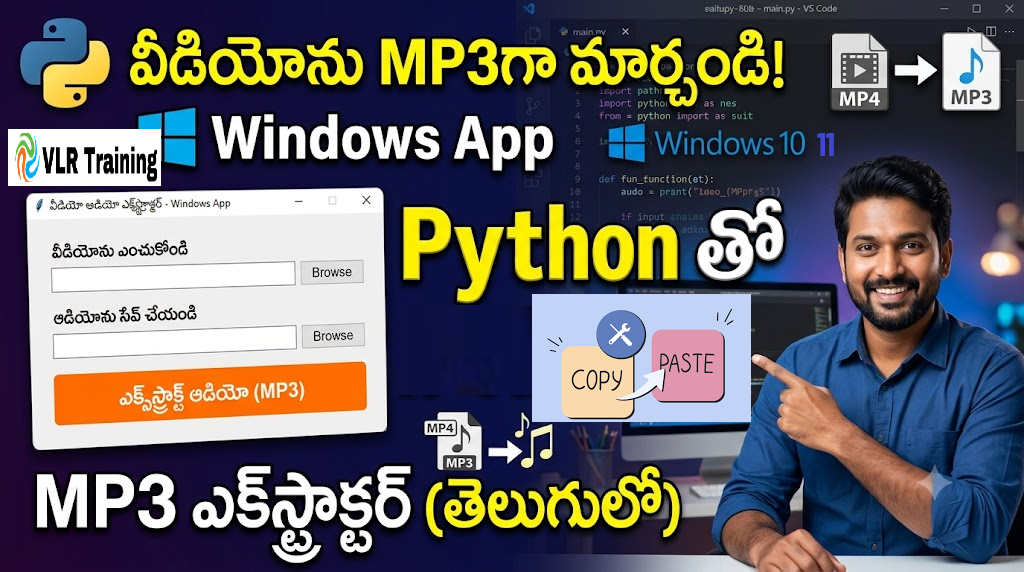
 Here is how to create a simple Windows graphical application using Python and tkinter to extract audio from video files, managing the environment with uv.
1. Set Up the Project Environment with uv
First, open your command prompt or PowerShell, create a new directory for your project, and set up the virtual environment using uv.
Bash
# Create and navigate to your project directory
mkdir audio-extractor
cd audio-extractor

# Create a virtual environment using uv
uv venv

# Activate the virtual environment (Windows)
.venv\Scripts\activate

# Install the required library for video/audio processing
uv pip install moviepy
2. Create the Python Application
Create a file named app.py in your project folder and paste the following code. This code uses tkinter for the user interface and moviepy to handle the media extraction. It also uses threading so the app doesn’t freeze during extraction.
Python
import tkinter as tk
from tkinter import filedialog, messagebox
from moviepy import VideoFileClip
import threading
import os

def select_video():
    filepath = filedialog.askopenfilename(
        title="Select Video File",
        filetypes=[("Video Files", "*.mp4 *.avi *.mkv *.mov")]
    )
    if filepath:
        video_path_var.set(filepath)
        base_name = os.path.splitext(filepath)[0]
        audio_path_var.set(f"{base_name}.mp3")

def select_audio_save():
    filepath = filedialog.asksaveasfilename(
        title="Save Audio As",
        defaultextension=".mp3",
        filetypes=[("MP3 Audio", "*.mp3"), ("WAV Audio", "*.wav")]
    )
    if filepath:
        audio_path_var.set(filepath)

def extract_audio():
    video_path = video_path_var.get()
    audio_path = audio_path_var.get()

    if not video_path or not audio_path:
        messagebox.showwarning("Missing Information", "Please select a video file and a save location.")
        return

    status_var.set("Extracting... Please wait.")
    extract_btn.config(state=tk.DISABLED)

    threading.Thread(target=process_extraction, args=(video_path, audio_path), daemon=True).start()

def process_extraction(video_path, audio_path):
    try:
        video = VideoFileClip(video_path)
        video.audio.write_audiofile(audio_path, logger=None)
        video.close()

        status_var.set("Extraction complete!")
        messagebox.showinfo("Success", "Audio extracted successfully!")
    except Exception as e:
        status_var.set("Extraction failed.")
        messagebox.showerror("Error", f"An error occurred:\n{str(e)}")
    finally:
        extract_btn.config(state=tk.NORMAL)

app = tk.Tk()
app.title("Vlr Training Audio Extractor")
app.geometry("450x300")
app.resizable(False, False)

video_path_var = tk.StringVar()
audio_path_var = tk.StringVar()
status_var = tk.StringVar()
status_var.set("Ready")

tk.Label(app, text="Select Video File:", font=("Arial", 10, "bold")).pack(pady=(15, 5))
video_entry = tk.Entry(app, textvariable=video_path_var, width=55, state='readonly')
video_entry.pack(pady=2)
tk.Button(app, text="Browse Video", command=select_video).pack(pady=2)

tk.Label(app, text="Save Audio As:", font=("Arial", 10, "bold")).pack(pady=(15, 5))
audio_entry = tk.Entry(app, textvariable=audio_path_var, width=55, state='readonly')
audio_entry.pack(pady=2)
tk.Button(app, text="Browse Destination", command=select_audio_save).pack(pady=2)

extract_btn = tk.Button(app, text="Extract Audio", command=extract_audio, bg="#4CAF50", fg="white", font=("Arial", 11, "bold"))
extract_btn.pack(pady=20)

tk.Label(app, textvariable=status_var, fg="gray").pack()

if __name__ == "__main__":
    app.mainloop()
3. Run the Application
With your virtual environment still activated, execute the script from your terminal:
Bash
python app.py
To turn your Python script into a standalone Windows application (an .exe file) that can run without needing Python or a terminal window, you can use a tool called PyInstaller.
Since you are already using uv for your virtual environment, the process is very straightforward.
1. Install PyInstaller
Make sure your virtual environment is still activated in your terminal (your command prompt should show (audio-extractor) at the beginning of the line).
Install PyInstaller by running:
Bash
uv pip install pyinstaller
2. Build the Executable
Now, tell PyInstaller to package your app.py script. We will use two specific flags to make it behave like a proper Windows application:
--onefile: Packages everything into a single.exefile.--windowed(or--noconsole): Hides the black command prompt terminal from popping up in the background when you run your app.
Run this command:
Bash
pyinstaller --onefile --windowed --copy-metadata imageio app.py3. Locate Your Windows App
PyInstaller will take a minute or two to analyze your script and bundle all the necessary Python libraries (like moviepy and tkinter) into the executable.
Once it finishes, look inside your audio-extractor project folder. You will see some new folders generated by PyInstaller:
dist/: Open this folder. Inside, you will findapp.exe. This is your final Windows application.build/andapp.spec: These are temporary files used during the build process. You can safely ignore or delete them.
Important Notes for PyInstaller:
- Startup Time: The very first time you open a
--onefileexecutable, it might take a few seconds to launch. This is normal, as it temporarily unpacks itself in the background. - File Size: The
.exewill likely be somewhat large (around 30-50MB or more) because it has to include the entire Python interpreter and themoviepylibrary inside it. - Antivirus Warnings: Sometimes, Windows Defender or other antivirus software falsely flags newly created PyInstaller executables as suspicious. If this happens, you may need to explicitly allow the file in your antivirus settings.